“Operate. Track. Improve. With Petra Business Suites, every part of your business moves forward — because what gets measured, gets mastered.”
Loading
“Operate. Track. Improve. With Petra Business Suites, every part of your business moves forward — because what gets measured, gets mastered.”

Managing employee leave should be structured, transparent, and accountable. Petra Business Suites provides a step-by-step leave application workflow that ensures every request is properly reviewed — from staff submission to stand-in confirmation and final managerial approval.
This guide walks through the complete leave process, showing how employees apply for leave, nominate stand-ins, and how managers review and approve requests.
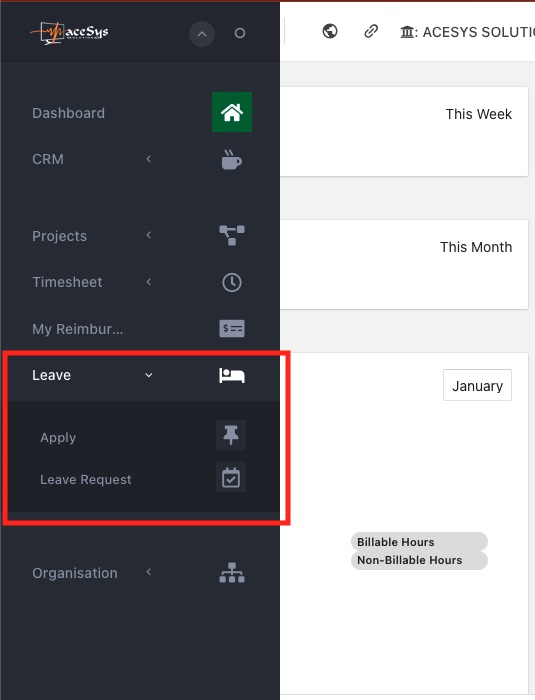
Employees can begin a leave request by navigating through the main sidebar:
This opens the Leave Application form where staff can view their available leave balances (Annual, Sick, or other enabled leave types).
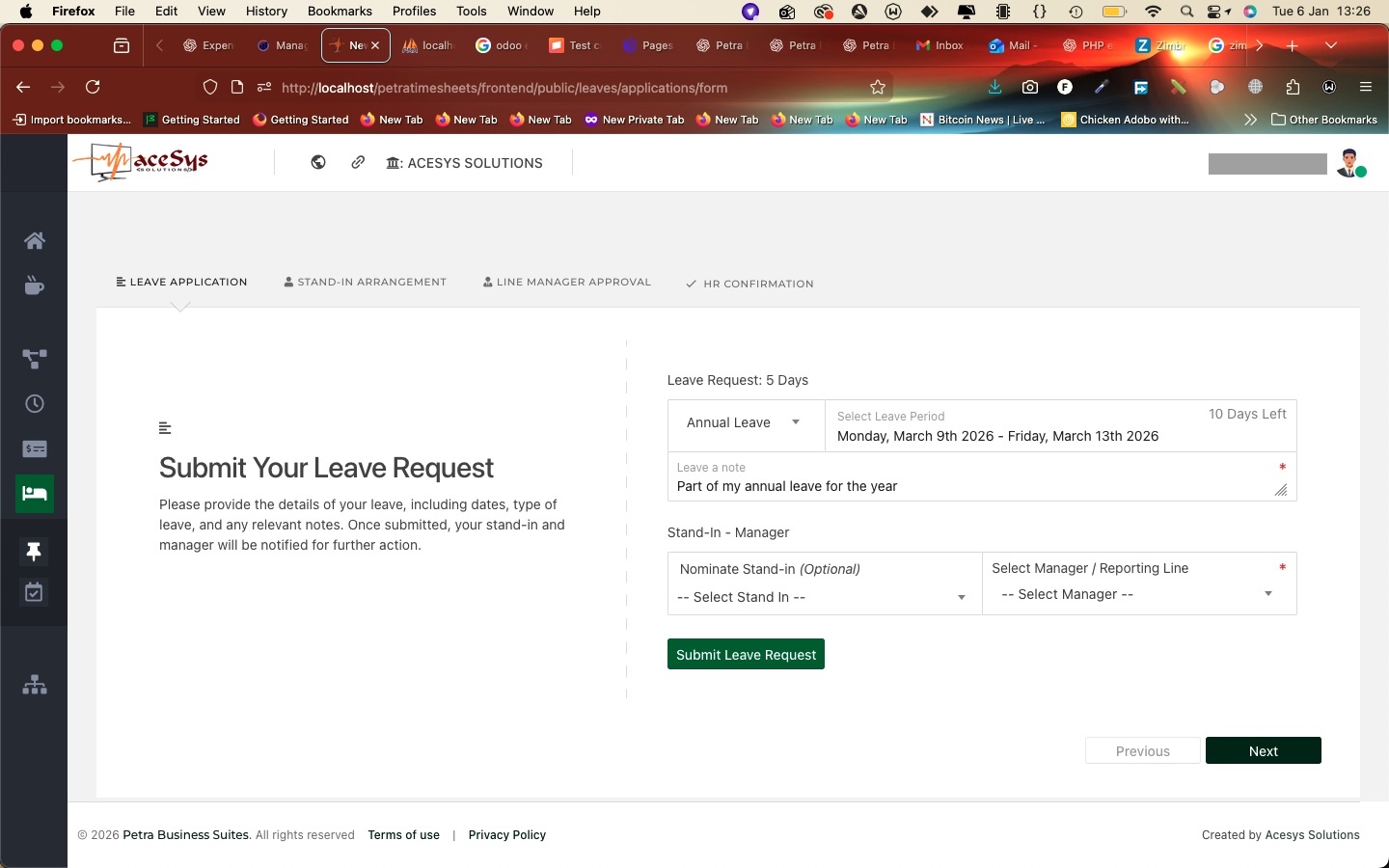
On the Leave Application page, the employee selects:
Petra automatically calculates the number of leave days and displays how many days remain.
Once completed, the staff member submits the request.
As part of the leave application, staff may be required to nominate a stand-in — a colleague who will temporarily cover responsibilities during the leave period.
The nominated stand-in receives a notification requesting confirmation of availability.
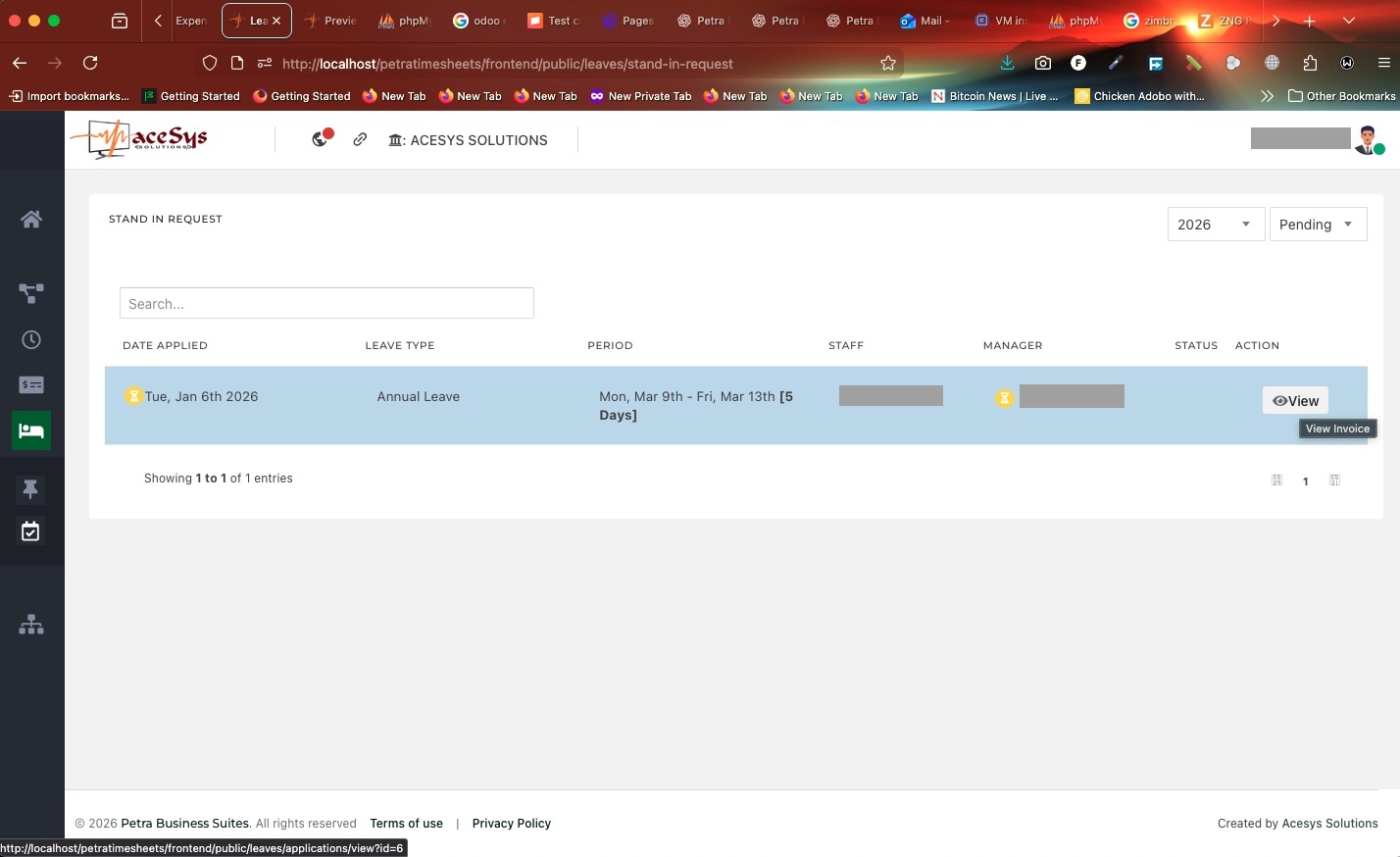
The stand-in reviews the request details, including:
They can either:
Until the stand-in responds, the request remains in a Pending Stand-In Approval state.
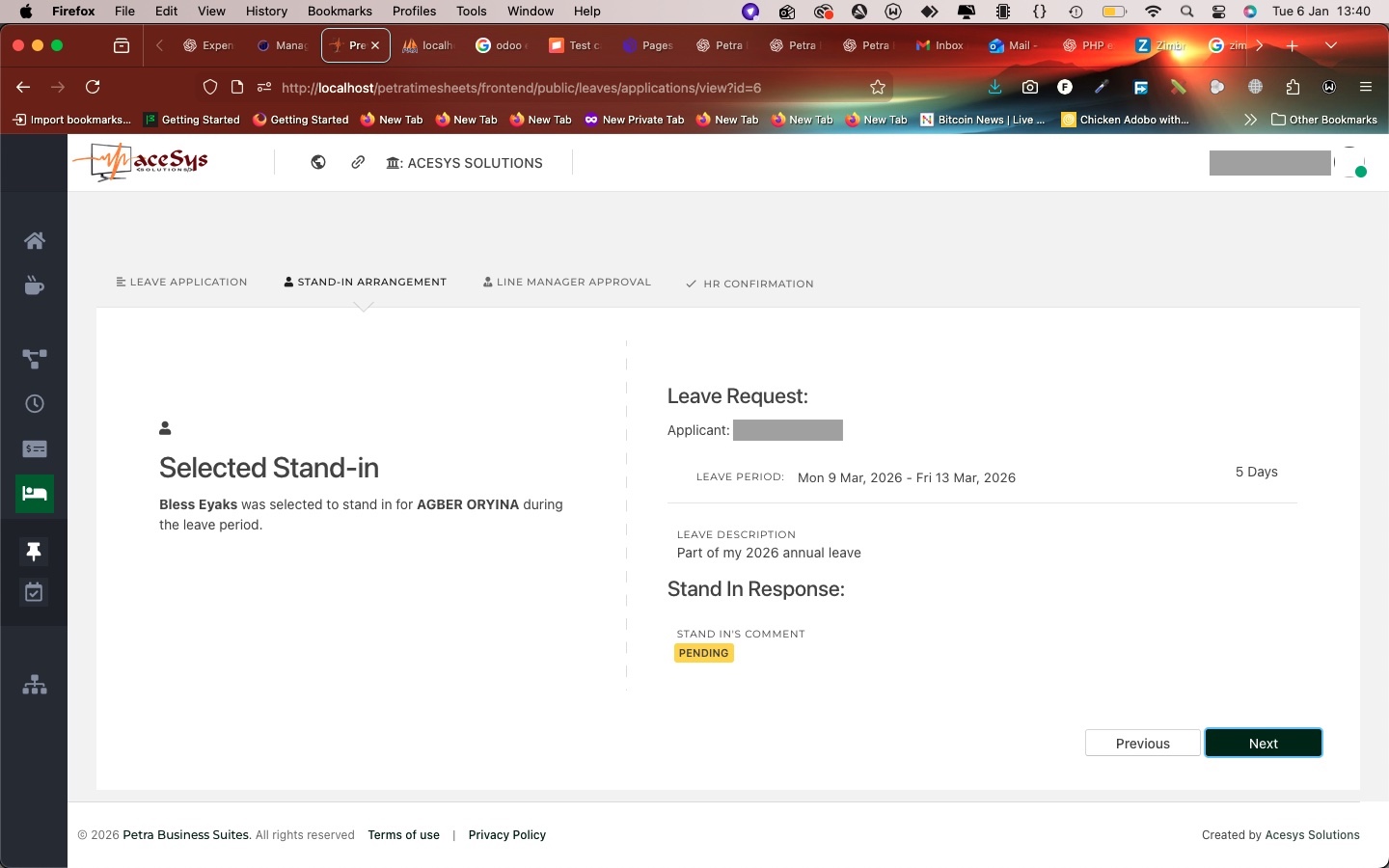
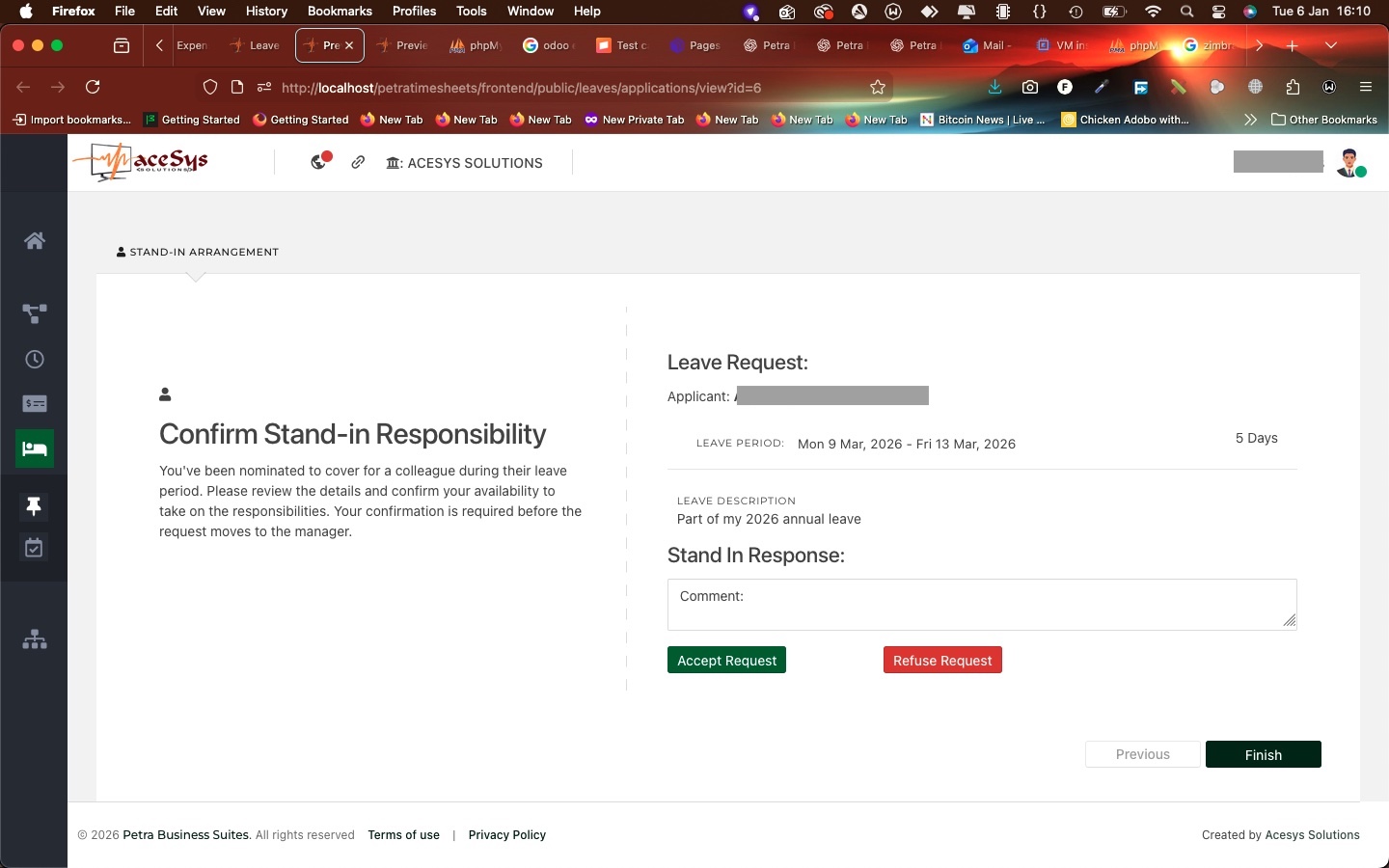
[Image: Accept or Reject Stand-In Request]
Once the stand-in accepts, the leave request is forwarded to the employee’s line manager.
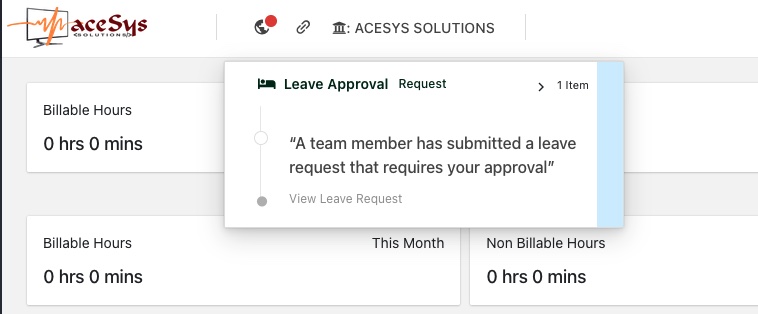
Managers receive instant notifications informing them that a leave request requires review.
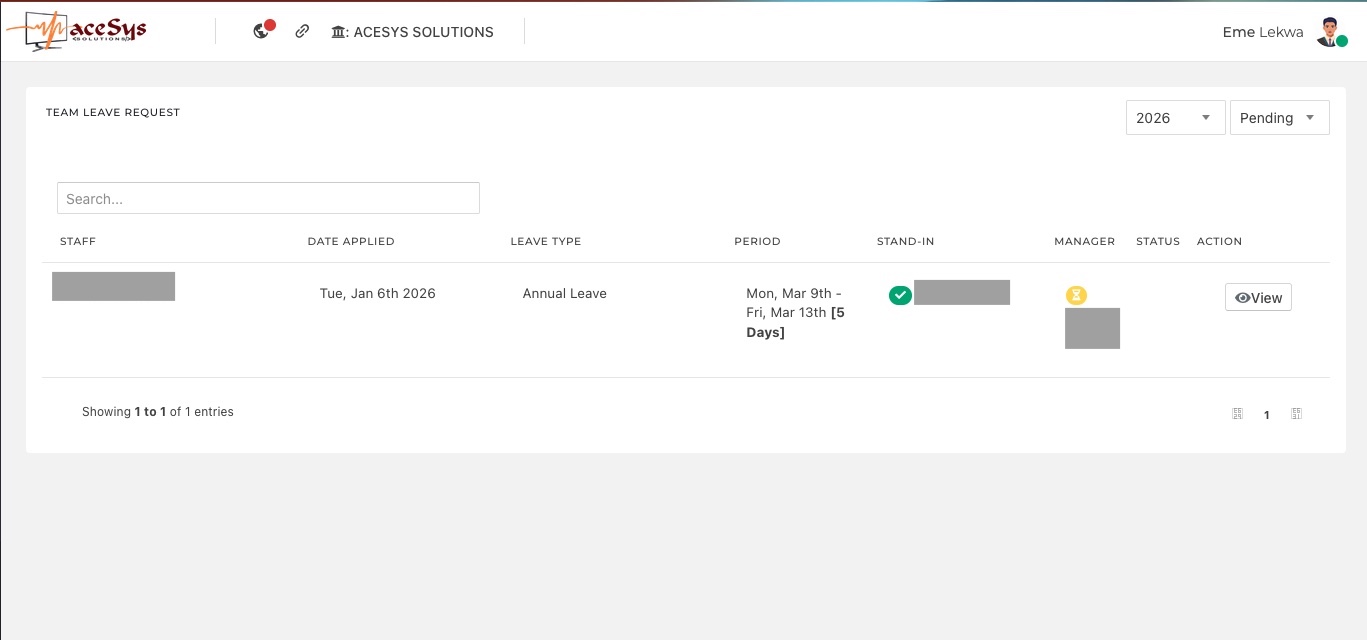
Managers can view all pending leave requests from the Leave Requests section. Each entry displays:
Selecting a request opens a detailed view where the manager can:
After approval:
Approved leaves become visible across dashboards, calendars, and reports, ensuring complete transparency.
Petra’s structured leave workflow ensures:
By guiding each request through defined approval stages, organisations maintain operational continuity while giving employees a smooth, transparent leave experience.
From application to approval, Petra Business Suites transforms leave management into a clear, traceable process. Every request follows a structured path — ensuring no leave is taken without visibility, confirmation, and authorization.
With built-in notifications, stand-in validation, and manager approvals, Petra ensures leave management is both employee-friendly and organisation-ready.


Book a walkthrough and we will show how Petra connects the ideas in this article to real work tracking.
Petra Support
Share your details so our team can keep the conversation connected if you come back later.